Canva AI Magic Studio: Every Feature Explained with Real Use Cases (2026)
A deep-dive into every Canva AI Magic Studio feature—Magic Write, Dream Lab, Magic Edit & more—with real use cases, pricing, and honest limitations.
Canva has quietly become one of the most consequential AI design platforms on the market. What started as a drag-and-drop template tool for non-designers has evolved into a full-stack creative suite powered by a cluster of AI features under the Magic Studio umbrella. As of 2026, Magic Studio is no longer a novelty add-on—it is the product.
This guide breaks down every major Magic Studio feature, explains exactly what it does, shows you who it is for, and tells you where it falls short. No filler, no marketing language.
What Is Canva Magic Studio?
Magic Studio is the collective name for Canva’s AI-powered feature set, rolled out progressively since late 2023 and now deeply integrated into every part of the editor. It spans text generation, image creation and editing, video production, data visualization, and brand management.
Magic Studio features are available at three access tiers:
| Feature | Free | Canva Pro ($15/mo) | Canva Teams ($10/user/mo) |
|---|---|---|---|
| Magic Write | 50 lifetime uses | Unlimited | Unlimited |
| Dream Lab (AI image gen) | Limited credits | 500 credits/mo | 500 credits/user/mo |
| Magic Edit / Eraser | Limited | Unlimited | Unlimited |
| Magic Resize | ❌ | ✅ | ✅ |
| Brand Voice | ❌ | ✅ | ✅ |
| Magic Morph | Limited | Unlimited | Unlimited |
| Bulk Create | ❌ | ✅ | ✅ |
| Magic Animate | Limited | Unlimited | Unlimited |
Pricing is verified against Canva’s official pricing page as of May 2026.
Feature 1: Magic Write
What it does: Magic Write is Canva’s in-editor text generation tool, built on large language model technology. You provide a prompt or select existing text, and it generates, rewrites, expands, or summarizes copy directly inside your design.
Real use cases:
- Social media managers drafting 30 caption variations for a monthly content calendar without leaving the design canvas
- HR teams generating onboarding document copy—policy summaries, welcome messages—directly inside a branded Canva template
- Small business owners rewriting product descriptions to match a specific tone (formal, conversational, urgent) without hiring a copywriter
Magic Write in Practice: A Real Test
We tested Magic Write on a free account with this prompt:
“Write an Instagram caption for a small business coffee shop announcing a new summer drink menu. Conversational tone, 2-3 sentences, include a call to action.”
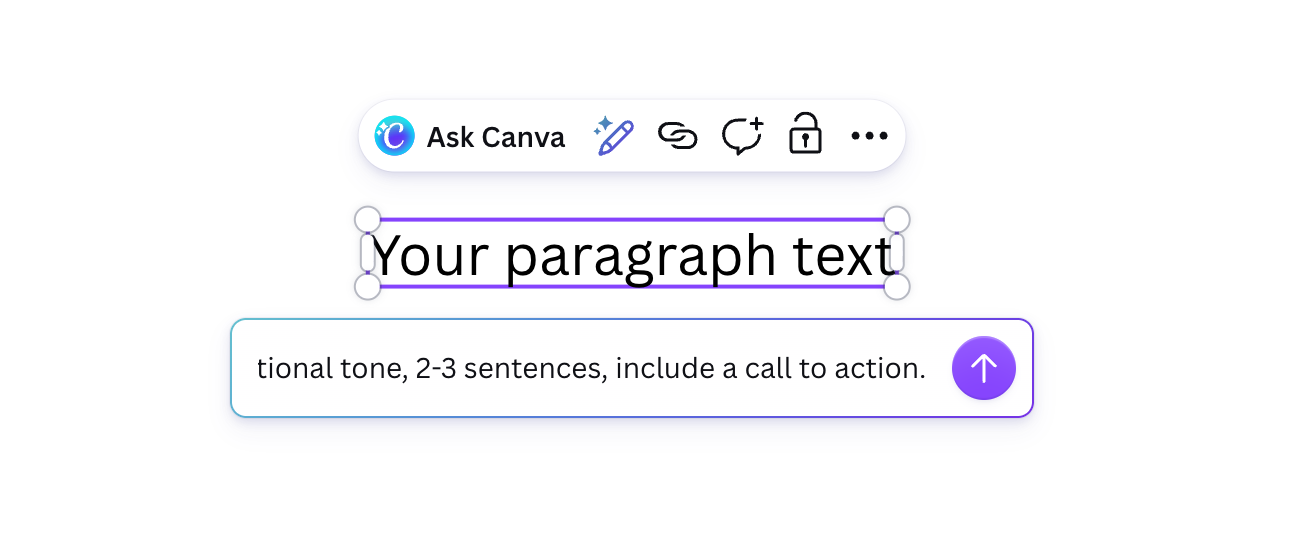
Generation speed: under one second. The result appeared almost instantly after submitting the prompt — no loading spinner, no perceptible wait.
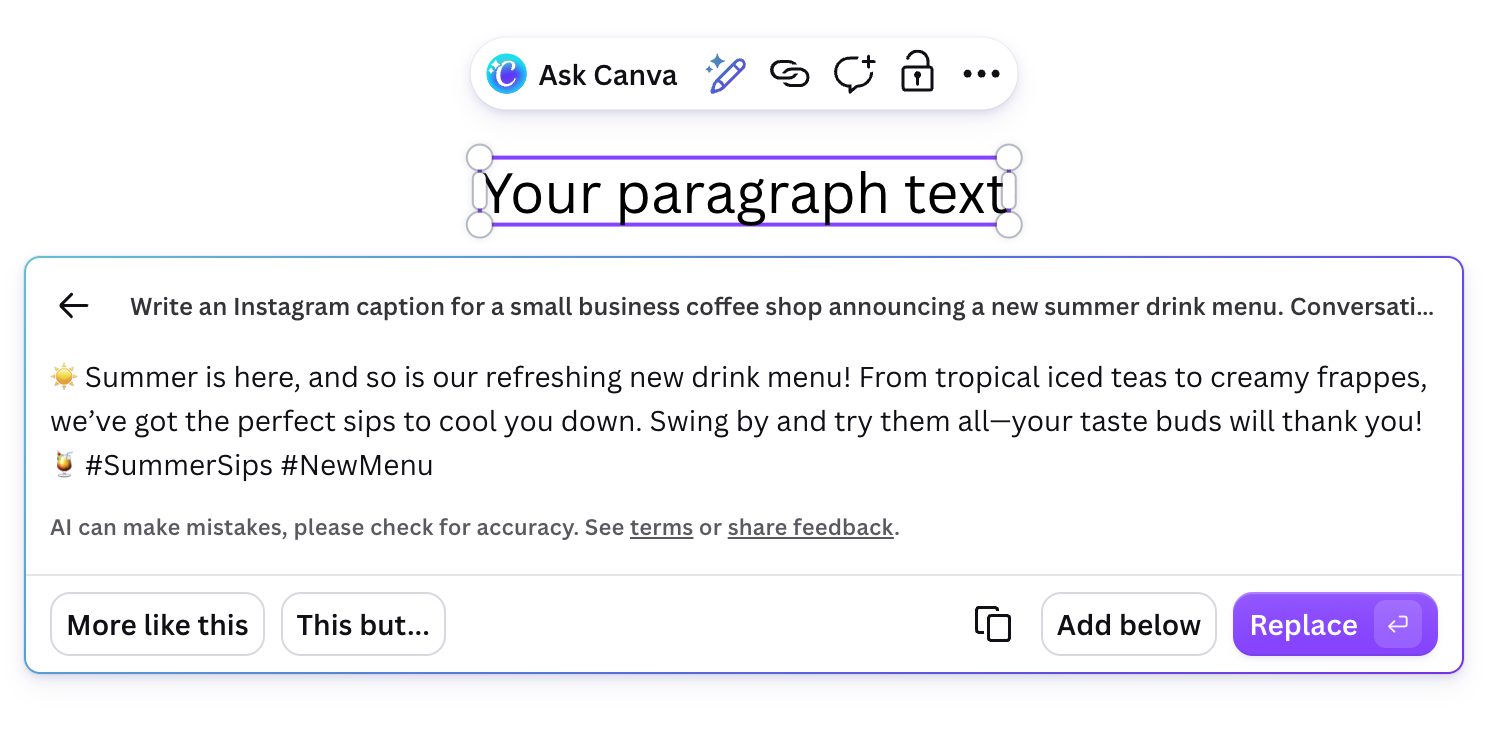
The output:
“Summer is here, and so is our refreshing new drink menu! From tropical iced teas to creamy frappes, we’ve got the perfect sips to cool you down. Swing by and try them all—your taste buds will thank you! 🌞 #SummerSips #NewMenu”
One-line verdict: Predictable but immediately usable — hits the brief, includes a CTA and hashtags, and requires zero editing before posting. It won’t win a copywriting award, but it would go live without embarrassing anyone.
The interface also surfaces “More like this” and “This but…” buttons after generation, making iteration fast without re-typing the full prompt. One behavior worth knowing: Magic Write follows the interface language, not just the prompt language. Running an English prompt while Canva’s UI is set to Korean will produce Korean output. Switch the UI language to English first if you need English copy.
What works well: The integration is genuinely seamless. Because Magic Write operates inside the canvas, the copy lands in the correct text box with your brand font and color already applied. That eliminates a copy-paste step that seems minor until you are producing 200 assets per month.
Limitations: Magic Write is not a replacement for tools purpose-built for long-form content. Outputs over roughly 300 words lose coherence quickly. It also lacks memory of previous prompts within a session, so iterating on brand voice requires repeating context each time. For serious copywriting workflows, tools like Jasper or Claude remain more capable.
Feature 2: Dream Lab (AI Image Generation)
What it does: Dream Lab is Canva’s text-to-image generator, powered by a combination of proprietary models and third-party integrations including Stable Diffusion and Adobe Firefly-style approaches. You type a prompt, choose a style (photorealistic, illustration, concept art, etc.), and generate images directly into your design.
Real use cases:
- Marketing agencies generating custom hero images for client landing pages without a stock photo license or photographer
- Educators creating original diagrams and visual metaphors for course materials
- E-commerce brands producing lifestyle product mockup backgrounds at scale (e.g., a skincare product against 10 different seasonal backdrops) for A/B testing
What works well: Dream Lab’s style presets are genuinely useful for non-designers. Selecting “watercolor editorial” vs. “cinematic photography” produces meaningfully different outputs without requiring prompt engineering expertise. The direct-to-canvas workflow means generated images are instantly resizable and layerable.
Limitations: Dream Lab struggles with text in images—a known limitation across almost all diffusion-based models, as noted in research on generative image models. Faces can be inconsistent across a batch, which limits usefulness for brand mascots or recurring characters. Credit consumption is not always transparent mid-session, which can catch Pro users off guard.
Feature 3: Magic Edit
What it does: Magic Edit lets you select a region of any image inside Canva and replace or modify it using a text prompt. It is a generative inpainting tool—you brush over what you want changed, describe the replacement, and the model fills it in.
Real use cases:
- Real estate marketing teams removing furniture or adding greenery to property photos without Photoshop
- Event planners swapping out seasonal décor in reusable event flyer templates (e.g., changing a Christmas backdrop to a New Year’s version)
- Product teams iterating on packaging mockups by replacing label designs or background textures in seconds
What works well: For straightforward object replacement—swap a red shirt for a blue one, remove a background element, add a prop—Magic Edit performs reliably. The workflow is significantly more accessible than Photoshop’s generative fill for users without design training.
Limitations: Complex edits that require understanding of lighting, shadows, and perspective often produce artifacts. If the object you are replacing has strong shadows cast across the composition, the result will look pasted-in. For production-grade image editing, Adobe Firefly’s generative fill inside Photoshop still produces cleaner results in demanding scenarios.
Feature 4: Magic Eraser and Background Remover
What it does: Two related but distinct tools. Background Remover automatically detects and removes the background from any image in one click. Magic Eraser lets you brush over specific elements (a person in the background, a watermark, a distracting object) to remove them.
Real use cases:
- E-commerce teams processing hundreds of product photos to white-background format for marketplace listings (Amazon, Shopify)
- Recruiters and HR professionals creating clean headshots for employee directory cards from casual photos
- Social media content creators isolating subjects for layered graphic compositions
What works well: Background Remover is genuinely one of the most polished features in Magic Studio. It handles hair and complex edges well—performance that previously required dedicated tools like Remove.bg or manual masking in Photoshop.
Limitations: Magic Eraser can leave visible smearing on detailed textures (brick walls, foliage, fabric patterns). It is not suitable for images where the erased area needs intelligent reconstruction—it fills with a blended approximation, not a generated replacement (that is Magic Edit’s job).
Feature 5: Magic Resize (Magic Switch)
What it does: Magic Resize—now rebranded as Magic Switch in the 2025 update—converts any design into a different format or size with one click. It attempts to intelligently reflow text, reposition elements, and crop images to fit the new dimensions rather than simply scaling everything proportionally.
Real use cases:
- Content teams repurposing a single campaign design across Instagram square (1:1), Stories (9:16), LinkedIn banner (1584×396), and Twitter/X header in under two minutes
- Agencies adapting client deliverables from print (A4) to digital (1920×1080 presentation) formats without rebuilding layouts
- Newsletter designers converting email header graphics into web banner formats
What works well: For simple layouts—a headline, a background image, a logo—Magic Switch handles the conversion impressively well. The time savings on multi-format campaigns are real and measurable.
Limitations: Complex multi-layer designs with precise typographic hierarchy often break. Text that was intentionally sized relative to a specific canvas proportion may end up too small or too large. Treat Magic Switch outputs as a strong starting draft that still needs a final human review pass, not a finished asset.
Feature 6: Magic Animate
What it does: Magic Animate adds AI-generated animation to static design elements. You select elements or an entire page and Canva applies motion that suits the content type—text might get a fade-and-rise, graphics a subtle pulse or slide.
Real use cases:
- Social media managers converting static Instagram posts into Reels-ready animated graphics without After Effects or video editing skills
- Startup founders creating animated pitch deck slides that hold attention during investor presentations
- Event coordinators producing animated countdown graphics and promotional videos for event promotion
What works well: For simple, polished social content, Magic Animate delivers results in seconds that would otherwise require Lottie files or basic video editing. The style options (Rise, Breathe, Pan, Tumble, etc.) are well-curated for common content types.
Limitations: You have limited control over timing curves, keyframe positions, or individual element animation sequences. For anyone who needs precise motion design—product explainer videos, branded intros—you will quickly hit a ceiling and need a dedicated tool like Adobe After Effects or CapCut Pro.
Feature 7: Magic Morph
What it does: Magic Morph applies generative AI texture and style transformations to shapes and text. Select a text block or graphic element, type a prompt like “molten lava” or “cracked marble,” and the element’s surface is transformed while retaining its original shape.
Real use cases:
- Brand designers exploring experimental logo treatments for mood boards and concept presentations
- Event designers creating immersive themed typography for party invitations or event signage (a “rustic wood” font treatment for a farm wedding, a “neon glow” effect for a tech event)
- Teachers and educators making visually engaging headers for classroom materials
What works well: Magic Morph is the most creative and experimental feature in Magic Studio. It produces genuinely novel visual results that are difficult to achieve quickly with traditional layer effects.
Limitations: Output quality is highly variable and difficult to predict. The same prompt on different shapes or fonts can yield dramatically inconsistent results. It is best used for exploration and ideation rather than production assets where consistency matters.
Feature 8: Brand Voice and Brand Kit AI
What it does: Brand Voice (Pro and Teams) lets you upload brand guidelines, past copy, or style descriptions so that Magic Write outputs align with your defined tone. Combined with Brand Kit (logos, fonts, color palettes), it creates a closed loop where AI-generated text and design elements stay on-brand by default.
Real use cases:
- Marketing directors at mid-size companies standardizing copy tone across a team of five content contributors who all use Canva differently
- Franchise businesses ensuring that 50 regional location managers produce marketing materials that look and sound identical to corporate guidelines
- Agencies maintaining separate brand voices for multiple clients within the same Canva Teams account
What works well: The combination of Brand Kit and Brand Voice meaningfully reduces the back-and-forth revision cycles that slow down agency-client relationships. It is one of Magic Studio’s most practically valuable features for teams.
Limitations: Brand Voice requires deliberate setup and ongoing maintenance. It learns from what you give it—vague input produces vague output. Teams that do not invest time defining their brand parameters will get generic results regardless of the feature.
Feature 9: Bulk Create
What it does: Bulk Create connects Canva to a CSV or Google Sheets data source and automatically generates hundreds of design variations by populating template variables (names, images, prices, dates) from each row.
Real use cases:
- E-commerce teams generating individual product ad creatives for a 500-SKU catalog from a product data spreadsheet
- HR departments creating personalized employee recognition certificates at scale
- Real estate agents producing individualized property listing cards for an entire portfolio in one run
What works well: Bulk Create is a significant time multiplier for any team producing high volumes of personalized assets. A task that would take a designer two full days can complete in 20 minutes.
Limitations: Template complexity affects reliability. Highly customized templates with conditional logic (show this element only if column X = “yes”) are beyond Bulk Create’s current capability—it is a variable substitution engine, not a rules-based content automation platform. For that level of complexity, tools like Smartly.io or Loom are more appropriate.
Magic Studio vs. Competing AI Design Platforms
| Platform | AI Image Gen | In-canvas Text AI | Brand Kit | Bulk Asset Creation | Starting Price |
|---|---|---|---|---|---|
| Canva Magic Studio | ✅ Dream Lab | ✅ Magic Write | ✅ Pro+ | ✅ Pro+ | Free / $15 Pro |
| Adobe Express + Firefly | ✅ Firefly | ✅ | ✅ | Limited | Free / $9.99 |
| Microsoft Designer | ✅ DALL-E | ✅ Copilot | ❌ | ❌ | Free (Microsoft 365) |
| Figma AI | Limited | ✅ | Plugin-based | ❌ | Free / $15 Pro |
| Picsart AI | ✅ | Limited | ❌ | ❌ | Free / $5 |
What the Performance Numbers Show
Before choosing a design platform, it helps to see what users are actually measuring.
Speed benchmarks from 2026: In Canva’s own AI generation testing, Magic Studio produces a usable flyer in 9 seconds, a 5-slide LinkedIn carousel in 14 seconds, and a 10-slide pitch deck in 22 seconds, per AI Flow Review’s 2026 Magic Studio benchmark. These are generation-to-ready times, not iteration times — they represent what’s possible when the AI interprets the prompt well on the first pass.
Productivity impact: A cohort study of 142 students completing a Canva Mastery course found that Magic Studio users produced 5.5× more branded content per week compared to their pre-AI baseline, per Sawan Kr’s 2026 Canva AI features guide. And according to Canva’s own AI in Marketing report (2026), 85% of marketers save at least 4 hours per week with AI tools — the equivalent of one recovered workday every two weeks.
The practical caveat: Speed numbers reflect ideal conditions. Complex brand customization, multi-image layouts, and niche prompts (specific cultural contexts, highly technical product diagrams) produce slower, less consistent results. Magic Studio’s strengths show most clearly in repeatable, format-driven content: social posts, email headers, presentation slides, and event materials.
Conclusion
Canva Magic Studio is the most complete AI-assisted design suite available to non-designers and small-to-mid-size teams in 2026. No competitor packages this many useful, genuinely integrated AI features at this price point.
Our recommendation: If you or your team are already using Canva and producing more than 20 assets per month, upgrading to Pro for unlimited Magic Write, Magic Edit, and Bulk Create access will pay for itself in hours saved within the first month. The $15/month Pro tier is, by most professional measures, underpriced for what it delivers.
Where to be realistic: Magic Studio is not a replacement for Photoshop in production image editing workflows, not a replacement for dedicated long-form AI writing tools, and not a motion design platform. Use it for what it excels at—fast, on-brand, multi-format asset production—and pair it with specialist tools where precision is non-negotiable.
For teams evaluating the full platform, Canva offers a 30-day free Pro trial with no credit card required, which is enough time to run Bulk Create and Magic Switch against a real campaign and measure the time savings directly.
Frequently Asked Questions
Is Canva Magic Studio worth it for small business owners?
Yes for short-form creative tasks — Magic Write, Background Remover, and Magic Resize alone can save significant time on social content and product photos. However, small business owners who need long-form copy, precise motion design, or production-grade image editing will still need supplementary tools.
How much does Canva Pro cost and what Magic Studio features does it unlock?
Canva Pro is $15 per month, per the article's pricing table verified against Canva's official pricing page as of May 2026. It unlocks unlimited Magic Write, 500 Dream Lab credits per month, unlimited Magic Edit and Eraser, Magic Resize, Brand Voice, Bulk Create, and unlimited Magic Animate.
Canva Magic Edit vs. Adobe Firefly — which is better for image editing?
For accessible, straightforward object replacement, Magic Edit is significantly easier to use for non-designers. For production-grade edits involving complex lighting, shadows, and perspective, Adobe Firefly's generative fill inside Photoshop still produces cleaner results.
Does Canva Magic Write work in languages other than English?
Magic Write follows the Canva interface language rather than the prompt language, so running an English prompt while the UI is set to another language — such as Korean — will produce output in that interface language. Switching the UI language to English first is required to get English copy output.